Main Menu
Deliverables List
Deliverable Details
Overview
Updating the Condition
Updating the Status
Viewing the Guide
Process Status
Menu Buttons
Main Menu
In Hydra Mobile simply select Deliverables from the main menu.
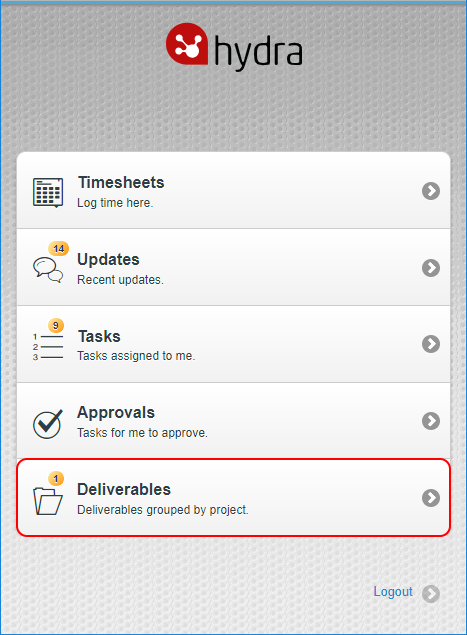
Deliverables List
At the top left of the screen you can use the home icon to go back to the main menu  or you can use the arrow icon to refresh the screen
You will see a list of your Deliverables (similar view to My Space > My Assignments > My Deliverables)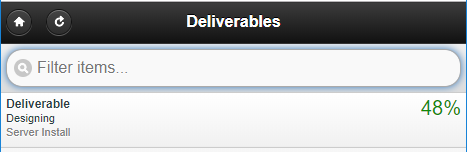
For each Deliverable in the list you will see:
Deliverable Name
State of the Deliverable
Project Name
On the right hand side you will see the Progress %
(The % uses the health / progress colour coding)
There is also a filter bar at the top which allows you to do a full or partial search on Name or State.
Deliverable Details
Select a Deliverable from the list to see more details: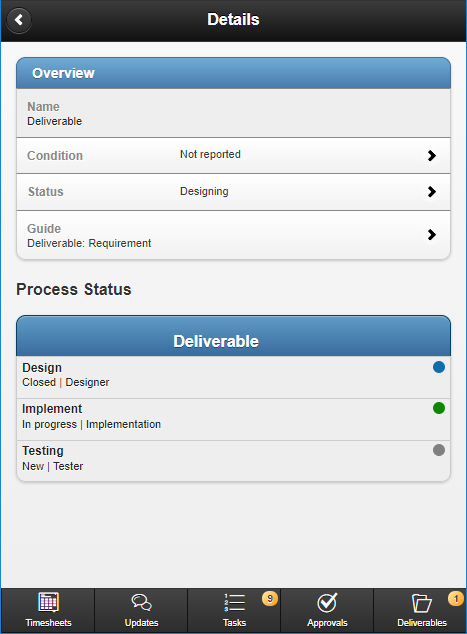
Overview
The overview section is a summary of details found on the Project > Deliverables > Deliverable > Overview screen
Updating the Condition
Condition allows you to update the condition from the list of options: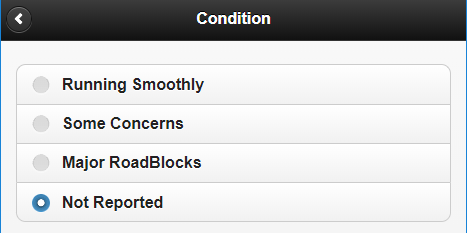
(Note: If you need to add a comment with the condition you will need to log in to the full site)
Updating the Status
With Deliverables the Status will usually update automatically when tasks are closed but you can manually update this from the list of States available: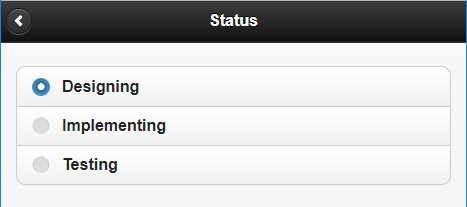
(You can read more about configuring states on the full site by clicking here)
Viewing the Guide
The Guide will summarise the Process Tasks and any predecessors and show the Setup of the States.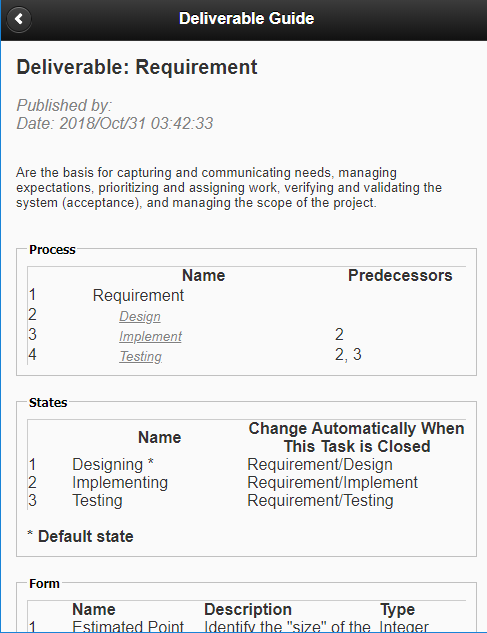
Process Status
The Process Status section is a view only summary of the details found under Project > Deliverables > Deliverable > Process tab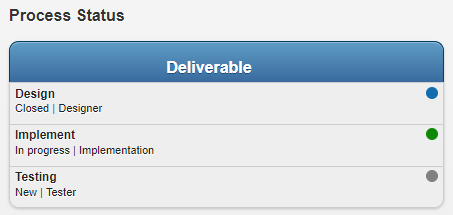
You will see the name of Tasks which contribute to the Deliverable, the status of the Task and the name of the resource assigned (generic or real).
The right hand side will show you the health, where:
Grey = Not Started (New / Planned)
Green = OK (In Progress)
Red = Late
Blue = Closed
Menu Buttons
At any time you can navigate to another menu by using the buttons at the bottom of the screen, the icon highlighted blue confirms the menu you are currently viewing: