The Alerts List tab displays Alerts which have been flagged up for this Project.
To see more details about the Alert click on the  icon to expand, to minimise again click on the
  icon.
icon.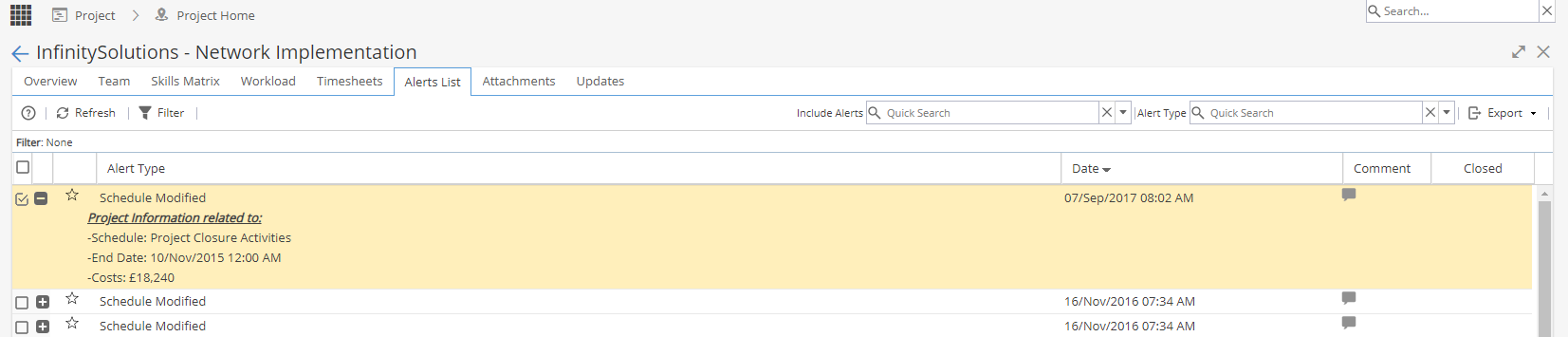
You can Filter using the drop down options on the top right or Export the list in your preferred format: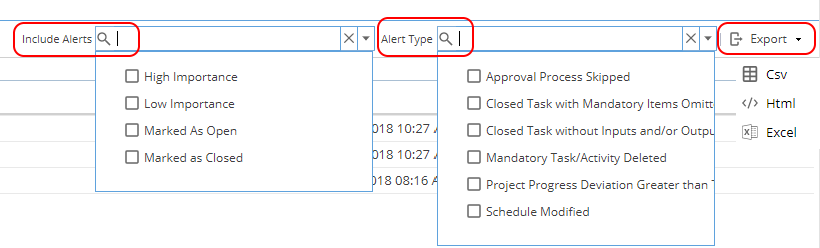
To Filter by Date right click anywhere in the Alerts table and click the funnel icon
An extra menu to filter on "Date Alert Generated" will appear with some time frames to choose from.
If Comments exist you will see a number in brackets after the speech bubble icon
Click on  to add a new or see existing Comments, you can also Post a reply to a Comment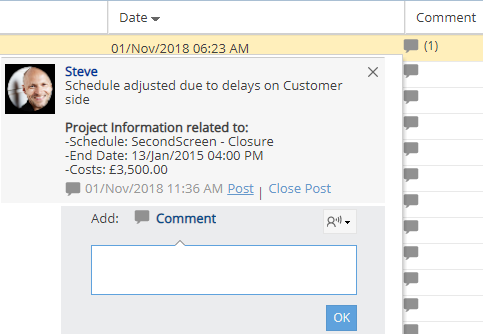
If you Close Post the comment will be removed so it is no longer visible
The Closed column will show blank or with a green tick.
This column is for information and can only be updated from the PMO > Alerts menu.
Note: The Alerts List tab will only be visible if Alerts have been set up:
Alerts need to be enabled at Company Level (Admin > Configuration > Company Preferences > Alerts)
Alerts then need to be configured for what you want to see (PMO > Alerts > Configuration)
If an Alert has been triggered because of a Task, you will be able to see a yellow warning triangle under Health e.g. Project > Tasks > Tasks List