The Alerts list allows you to track alerts you have set up on the configuration tab e.g.when an approval process has been skipped.
On the top left hand side you will see:
When one or multiple Alerts are selected you will have the option to Mark as Closed / Mark as Open
Closed Alerts will have a green tick under the Closed column on this view and also Project > Project Home > Alerts List
The Refresh button will update any information on the Alerts List which have changed.
The Filter options allow you to view specific Alert Types, Projects, Tags, Project Managers, Date Range, Closed/Open or High/Low Importance:
When you have set your filter options they will be shown as a reminder on the top left:
To remove the filter, click the funnel icon and then the Clear button.
In the main view of the Alerts list: Expand / Collapse
Expanding the Alert will give you some additional information under the Alert Type section: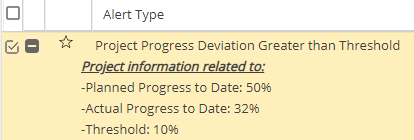
 The star symbol allows you to mark an Alert as High / Low Importance, the priority can be used with the filter.
The list will show you the Alert Type, Project, Project Manager and Date. The Comment column will show the speech bubble icon which allows you to add a note.
If Comments exist you will see a number in brackets after the speech bubble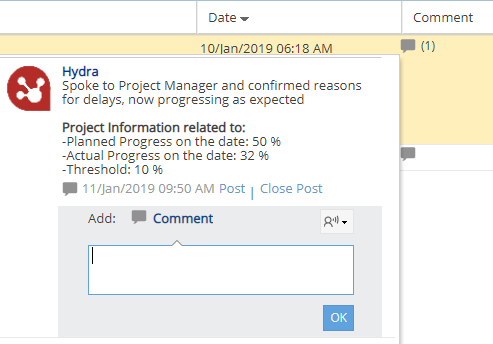
These comments are also visible under Project > Project Home > Updates and
Project > Project Home > Alerts List
The Closed column will show a green tick if the Alert has been marked as Closed.
If you do not want to see Closed Alerts you can use the filter to hide them.
On the top right hand side you will see:
Update Alerts - Used when changes have been made on the configuration tab, to reapply the rules to check which Alerts should now be displayed in this list.
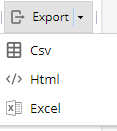
Export - Export a copy of the Alerts List in your preferred format from CSV, HTML, Excel