The Task List in Hydra shows you all of the Tasks in your Project, including the Tasks for Risks and Issues.
The following information is available in this view:
- Name - Name of the Task
- Tags - The tags assigned to the task
- Status - An icon showing if the task is planned, in progress or completed
- Condition - A flag set by the resource to show if there are any issues on the task
- Health - RAG style indicator -
Grey shows a task is not started,
Green indicates it is open and not late,
Red shows it is open and late,
Blue shows the task is closed
Yellow Warning Triangle means an Alert has been triggered
*Alerts will be visible via Project > Project Home > Alerts List
**Alerts can be closed via PMO > Alerts > Alerts - Complexity - Shows the complexity of the task. Set by the resource within the task
- Priority - Shows the priority of the task. Set by the resource within the task
- Due Date - Date the task is due
If the Due Date does not show correctly you need to edit the Task in the Gantt.
Remember, the way you edit a Task depends on the Scheduling Mode.
If a Task is "effort driven", the end date is changed by editing the start date & effort.
If you were to increase the effort just to make the end date show later, this will impact costs etc. - Completed - When the task was completed if applicable
- Effort Difference - The difference between the effort logged against the task, compared to the effort required to complete the task
- Cost Difference - The difference between the costs incurred by the task at a given point in time, compared to the expected cost to complete the task
- Assigned to - The resource this task is assigned to

New Tasks can be created using this view by clicking on the New button.

Selecting a Task and clicking view will show you the Task View for that Task.

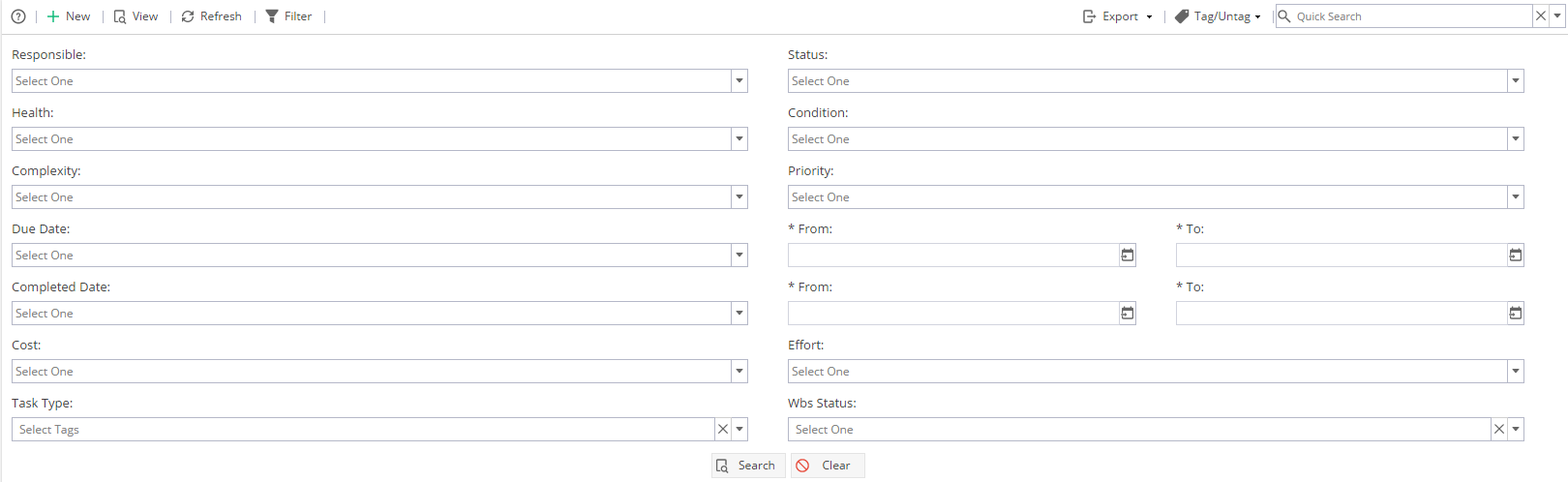
The Filter allows you to filter the Task List.
Export allows you to export the information available in this screen to various file formats, to do so click Export and select which file format from the drop-down menu that appears. The file will then download to your local computer automatically.

Quick Search allows you to search for specific Task(s). The down arrow button next to the search allows you to Filter the list of Tasks using the Tags you have set up.
