To view your Projects you can go to PMO > Projects > Projects (tab) which will show the Projects List screen.
You will be able to see information about the Projects:
Alias, Name, Tags, Project Manager
Condition, Actual Cost, Start Date, End Date
Project Custom Fields (*if configured via Admin > Configuration > Company Preferences)

Note: only projects which you have access to see will be visible here
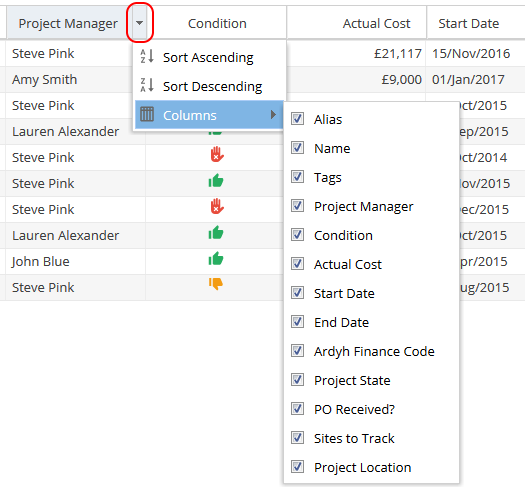
To Sort on a column, click the drop-down arrow on the right of a column heading and click 'Sort Ascending' or 'Sort Descending'.
To Hide/display a column, click the drop-down arrow on the right of a column heading, scroll to 'Columns' and tick/untick a column as desired.
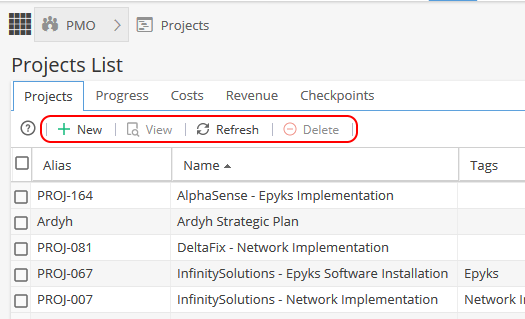
The options at the top left of the Projects List page allow you to:
- Create a Project by clicking the + New button.
- Clicking the View button (or double clicking on a Project) will take you to Project Details
- Refresh the page to check for any changes and see the data in real time
- Delete a Project by selecting a Project and then clicking the Delete button (Deleted Projects can not be recovered)
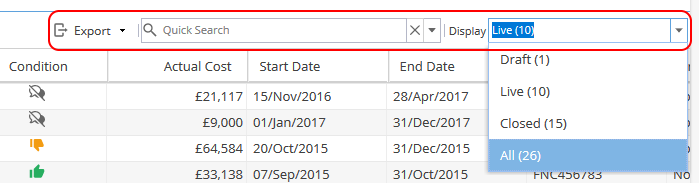
The options at the top right of the Projects List page allow you to:
- Export the Project list in your preferred format (CSV, HTML or Excel)
- Quick Search for part of the Project Name or Project Manager Name
- Using the down arrow on the right of Quick Search you can filter by Tags (*If configured under Admin > Configuration > Company Preferences)
- Click the Display drop down to change the view by Project Status (Draft/Live/Closed/All)