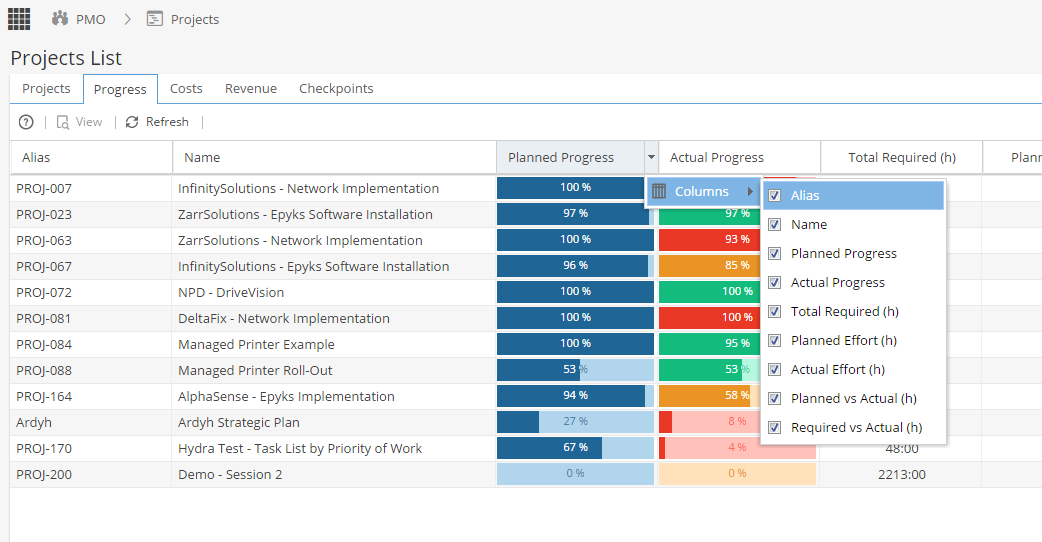
The Progress tab allows you to see at a glance the progress across your portfolio of Projects.
(Note: only the projects to which you have been given access to will be displayed)
The Following Information about the projects will be displayed:
- Project Name
- Planned Progress (%)
- Actual Progress (%) - Read how the colour indicating Health is calculated.
- Total Required (hrs)
- Planned Effort (hrs)
- Actual Effort (hrs)
- Planned Vs Actual (hrs)
- Required Vs Actual (hrs)
Custom Fields can also be added to this view. For instructions on how to configure this, refer to Admin > Configuration > Company Preferences and look for the section called "Project Custom Fields".
To Sort on a column, click the drop-down arrow on the right of a column heading and click 'Sort Ascending' or 'Sort Descending'.
To Hide/display a column, click the drop-down arrow on the right of a column heading, scroll to 'Columns' and tick/untick a column as desired.
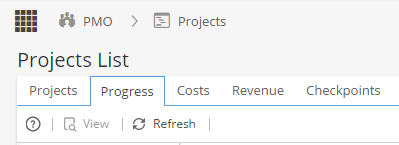
The options at the top left of the Progress page allow you to:
- Open a Project by clicking the Project and then clicking the View button. For further details on Project contents refer to Project > Home > Overview
- Refresh the page to check for any changes and see the data in real time
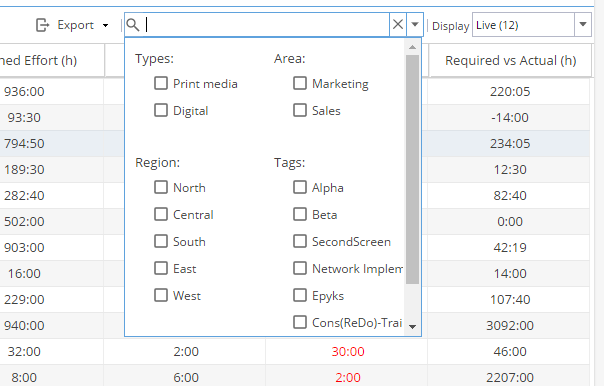
The options at the top right of the Progress Tab allow you to:
- Export the contents of the page to .csv, .html or Excel file types, by clicking on the Export button then choosing the desired option
- Quick Search for a keyword in all of the Project columns. For example, you could search for 'integration' projects by typing the word 'integration', then pressing Enter on your keyboard
- It is also possible to filter by Tags by clicking the drop-down arrow next to the Quick Search box and clicking the desired Tags
- Click the Display drop-down option to choose Projects based on status; Draft, Live, Closed or All.