Go to Knowledge > Blueprints > Company Blueprints tab.
Double click on a Blueprint name in the list.
Click the project icon on the top right to go to the Template Project 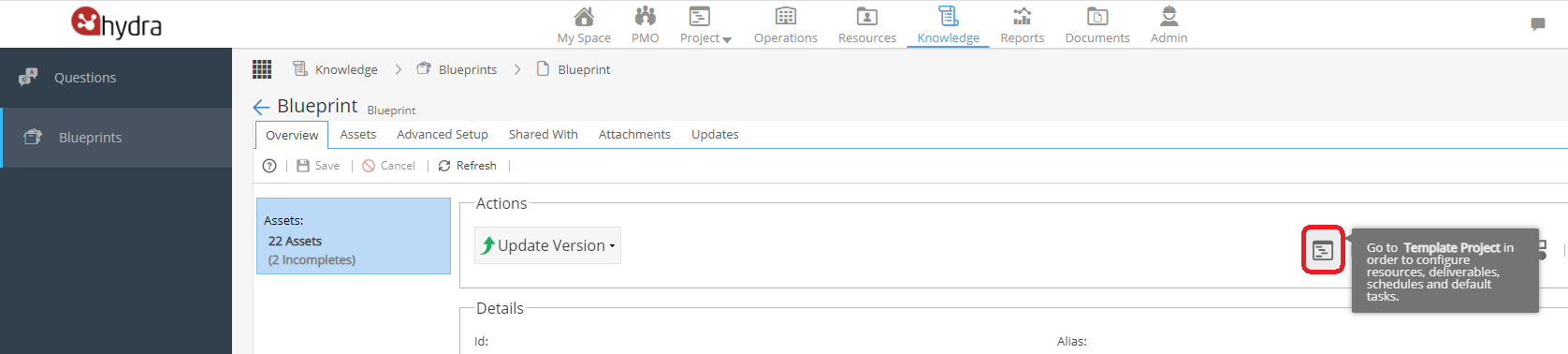
Click on Finances in the sub-menu on the left.
Select the Costs & Rates tab.
Click on the + New button on the top left.
Fill in the 3 drop down options and click Add.
Repeat this step as many times as required for this Blueprint.
Click Save.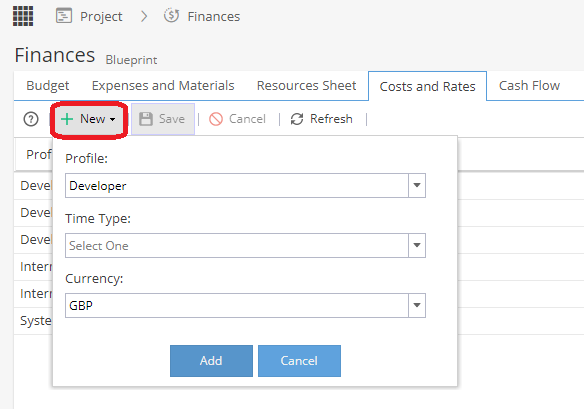
The Costs and Rates tab of your Template Project will now have multiple rows shown for different currencies: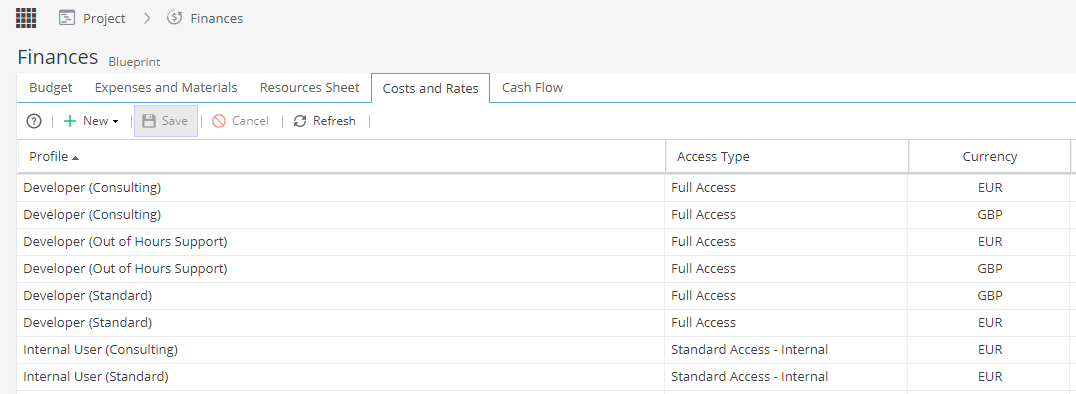
When you create a new Project you will now have the option to select one of the currencies used in the Costs & Rates tab
(from the Template Project as described above):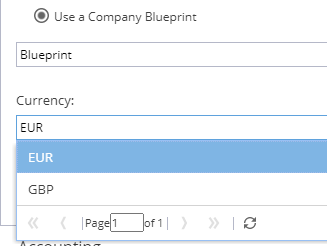
The new project will only show the costs and rates for the selected currency: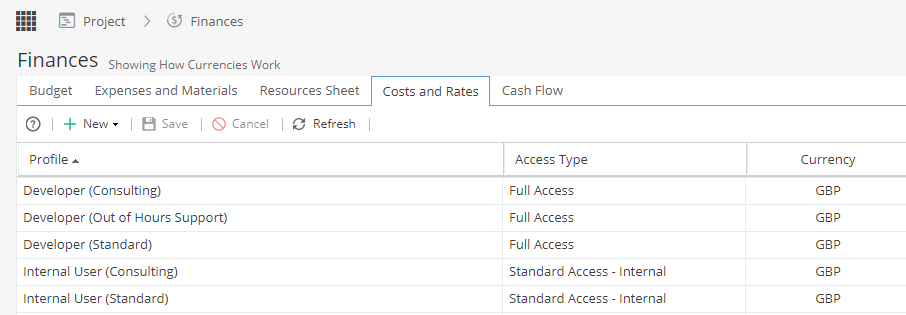
If you change the currency via Project > Admin > Preferences > Currency Configuration
This will change the currency displayed on the costs and rates tab to your new selection.
If I create projects via bulk uploads can I set the currency?
Yes! Contact the Hydra Support team if you need the template used for bulk uploads to be updated to include the currency option.
Please note, currencies will only be available once the blueprint template project has been updated, so you would need to review this first!