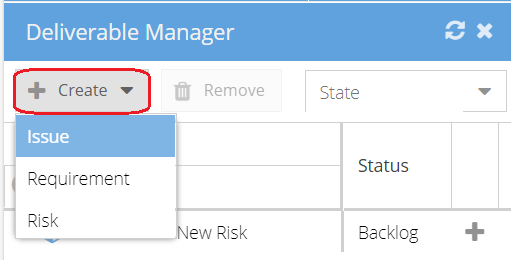
Why do some assets in my Blueprint show as Incomplete?
Whenever new assets are added, you need to mark them as complete to confirm you are happy they have been correctly configured.
How do I know if an asset is Incomplete?
From Knowledge > Blueprint > Assets you will see:
- Left Hand Panel - Number of incomplete assets
- Middle Panel - Name of incomplete assets in bold and itallic
- Right Hand Panel - Yellow warning triangle and pencil icon says Incomplete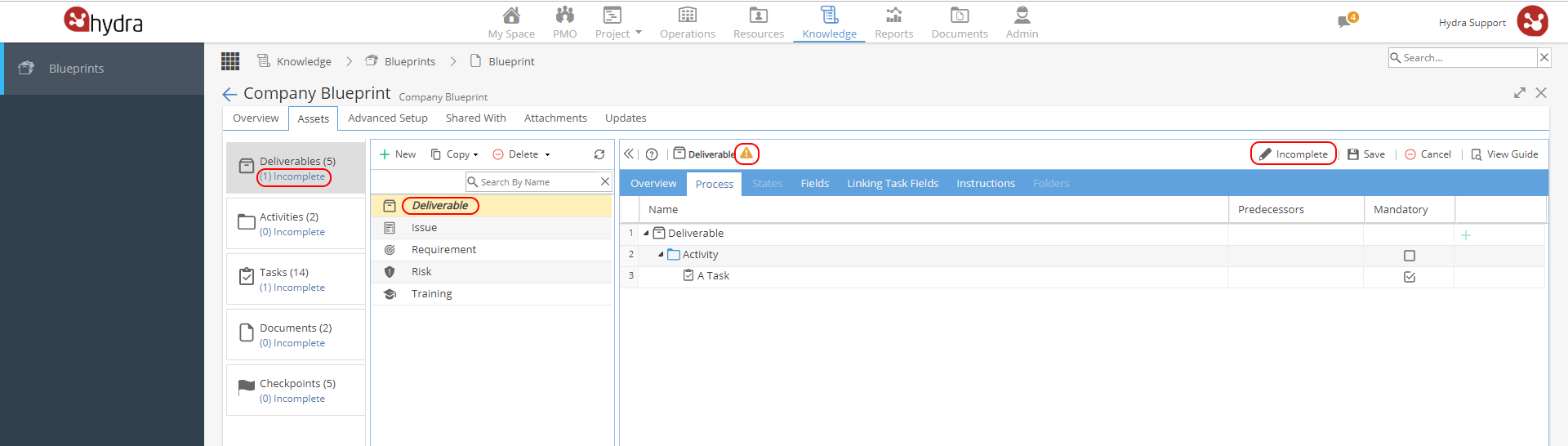
How do I set the Assets to complete?
Remember you should only mark an Asset as complete once it has been configured, so go through the tabs for each asset and make sure any checklists, processes, performed by, instruction fields etc have been completed.
When you are happy your asset is ready, select the asset and hover your mouse over the pencil icon, you will see the name change to Complete but you must click on it to make the change:
As soon as you click on this the left and middle panels will update to reflect this asset is no longer incomplete.
It is best to work through the incomplete assets from the bottom of the list up to the top:
Checkpoints, Documents, Tasks, Activities & then Deliverables.
Deliverables rely on the Activities and Tasks from the Process tab being completed, so it is best to do these first so you do not get any errors when trying to update the deliverable.
If you get this error, check the activities and tasks before trying again:
Once a deliverable is set to complete, it will then be available to add using the Deliverable Manager in a Schedule for a Project (using the Blueprint):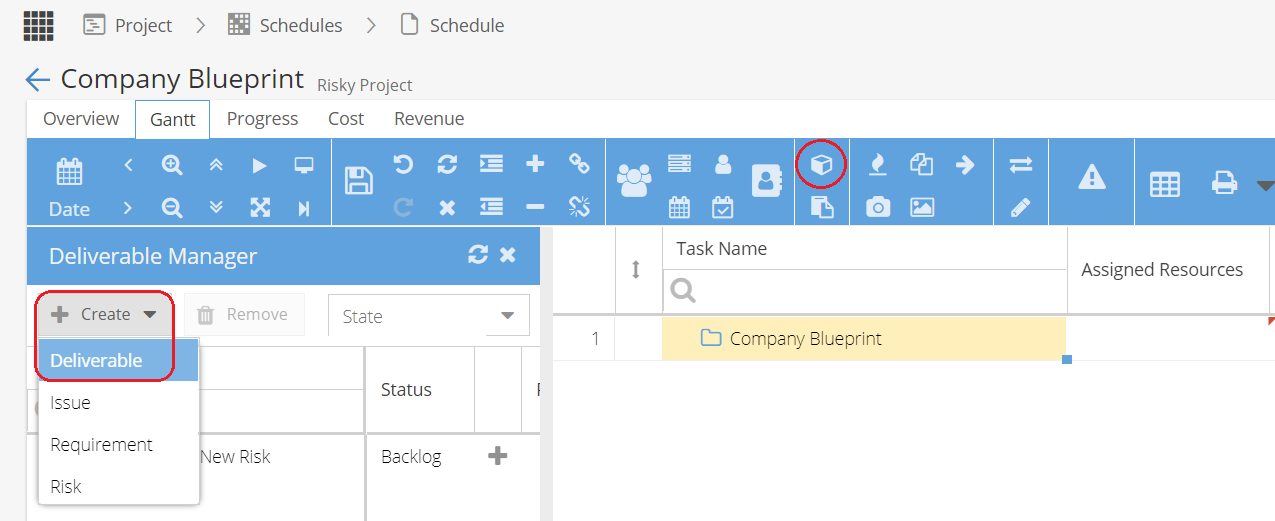
Even if a single Task from a Deliverable is incomplete, the Deliverable will not be available to add: