Time Log Approvals allow you to review and approve each timesheet records:
The list is grouped by project.
This option is configured under Admin > Configuration > Company Preferences > Approval Time Type.
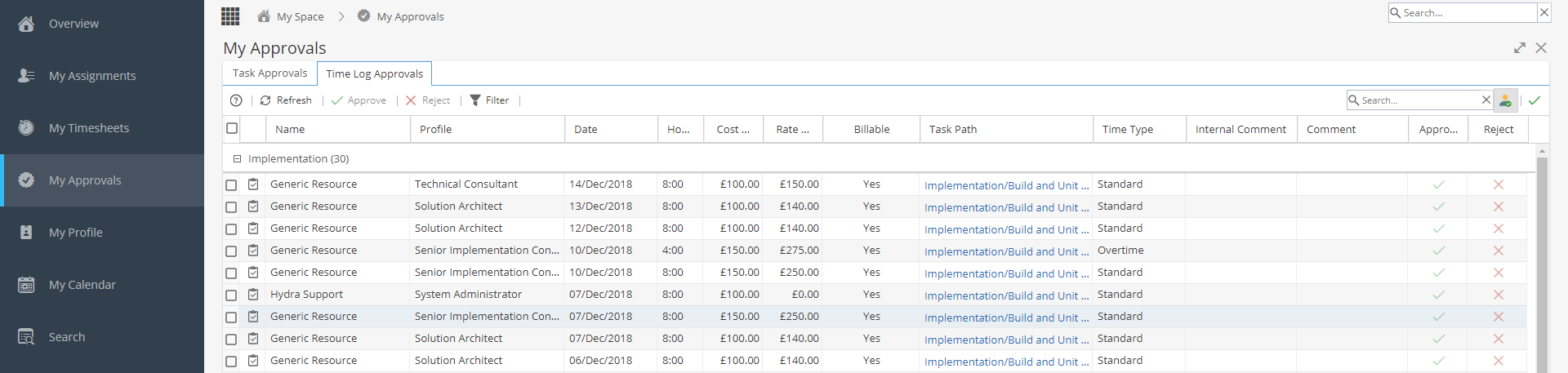
This view shows the following information:
- Name & Profile of the person who logged the time.
- Date time logged for
- Amount of hours logged (HH:MM)
- Cost per hour
- Rate per hour
- If the time is Billable
- Task Path - Route within the schedule where the task in which the time was reported is planned.
- Time Type - For example: Standard, Overtime etc.
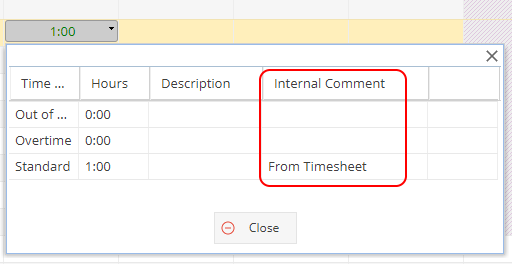
- Internal comment from My Space > My Timesheets.
- Comment
- Tick to Approve / Cross to Reject. / Arrow to Un-approve
To approve multiple timesheets in one go you can use the check boxes down the left hand side and then select the Approve button with the green tick (on the top left left).
*Note: The Tasks / Comments will show as a link if the column is not wide enough to display the full text. Clicking on the link gives you a pop up box to display the text, it does not act as a shortcut to the schedule / timesheet.
When a Time Log is Rejected, you are asked to add a comment: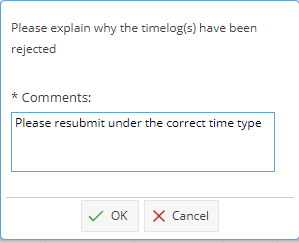
The rejection comment will be visible on the user's Timesheet and an email they receive to notify them of the rejection.
On the top left of Time Log Approvals:
Refresh -
Approve / Reject - You can select multiple Time Logs using the check boxes down the left hand side, selected rows will show as highlighted yellow.
Filter - The filter will default to only show approvals from today or older.
Click on the funnel to get options to filter by Date Range, Task Name, Time Type or Project.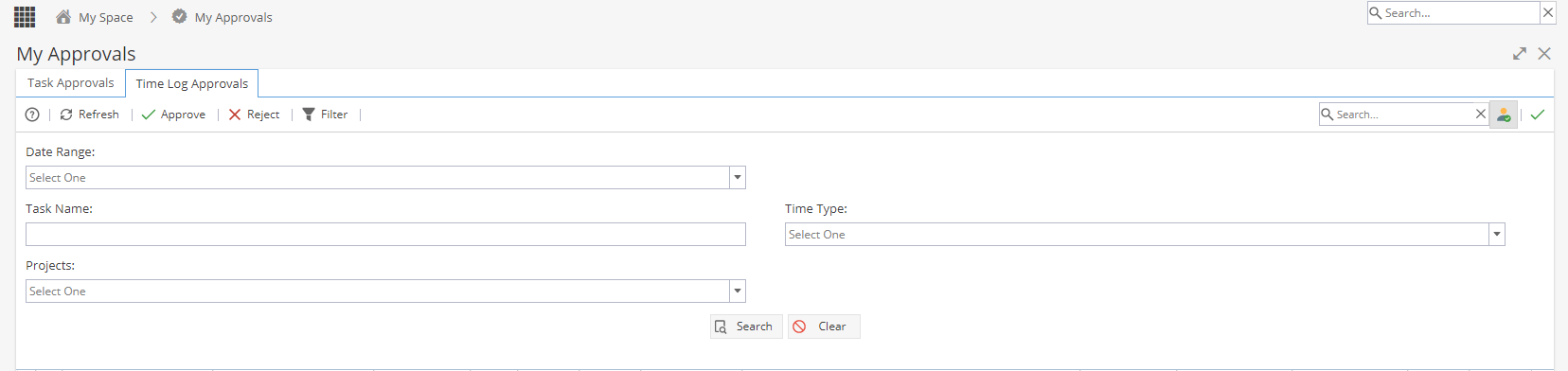
To check records already Approved or to Un-approve an existing Timesheet:
On the top right of Time Log Approvals:
Search - Name of Resource
Filter view to show Waiting Approval  or Approved
The Approved View will give you the option to Un-approve a Time Log instead of Approve / Reject
Note: If Un-approving a record, you will need to be the Project Manager to see the records on this tab.
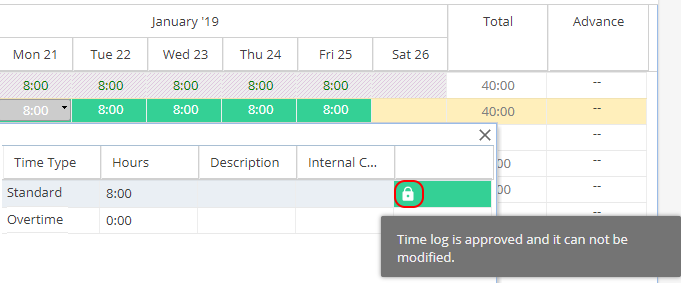
From the Project > Project Home > Timesheets tab view you will only be able to see the padlock as green: