Project Home > Timesheets
The Timesheet tab in the Project Home area allows you to manage and monitor the time that is logged by the Resources on your Project
A Project must have Enable Time Logs set to Yes for the Timesheets tab to show.
This tab will not show when a Project is in Draft.
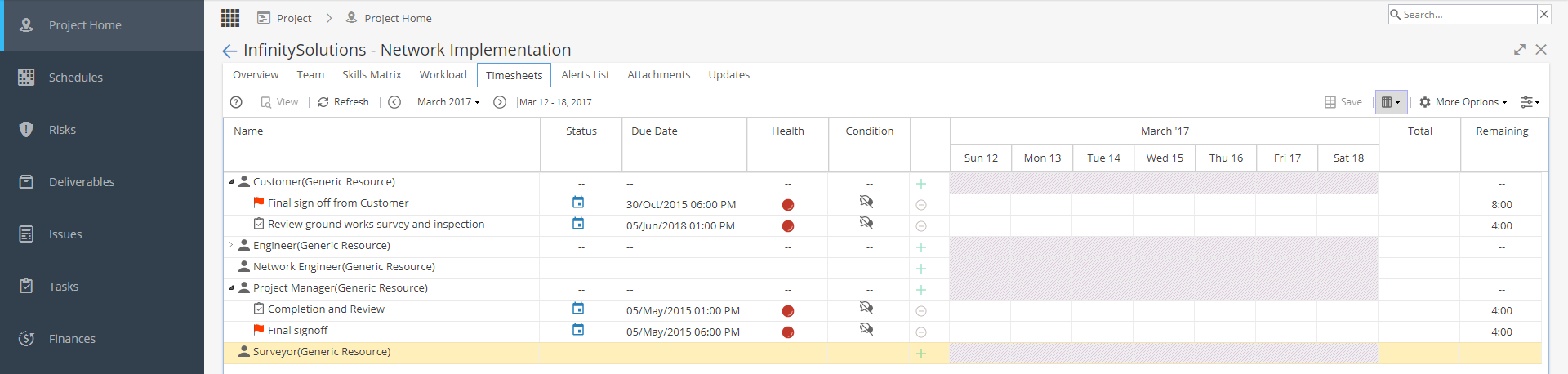
When you open the tab, the default view will be the Current Week. You can change the date range displayed or switch to a Monthly view by selecting the option in the toolbar.
The Columns can be adjusted by hovering over the blank column between Condition and Dates, which will make an arrow appear giving you the option to Sort or Add / Remove Columns. When you make any changes to the Columns, the Save button on the top right will become available.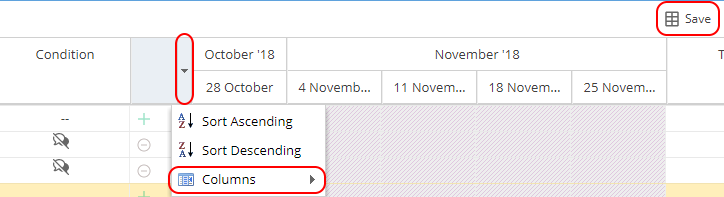
The More Options menu allows you to easily Expand / Collapse all entries in the list or Export the current view in various formats.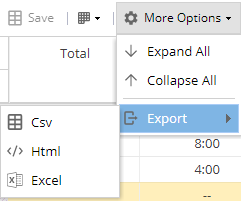
There are also Filter options available if your list of users is large. You can filter by specific Users or Assignment (e.g. to hide Tasks completed this week).
In both cases there is a Selected column, and an Available column, to move users or statuses between these columns you can either Click & Drag, or Double Click.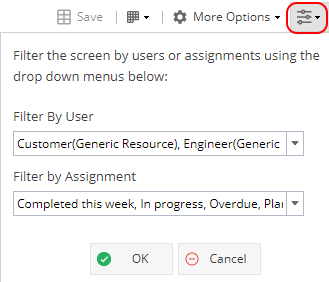
The Status column will show a calendar if the task is planned, or a cog if the task is in progress / started. You can click on the icon to update the Status if needed.
Click on the Condition if you want to flag if the task is Running Smoothly, Some Concerns or Major Roadblocks.
Click on the + icon if you need to Add Planned Assignments or Unscheduled Events on the Timesheet for a Resource.
Read more about logging time on behalf of someone else.
If a Real Resource (not Generic) has Tasks you can send an email notification.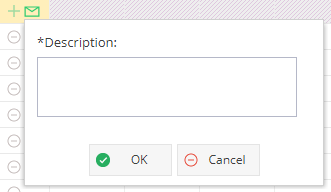
The Remaining Time on the right hand column can be edited if you double click.
If the Timesheet shows orange, you will need to ask the Resource to edit their Activity Report via My Space > My Timesheets > Activity Reports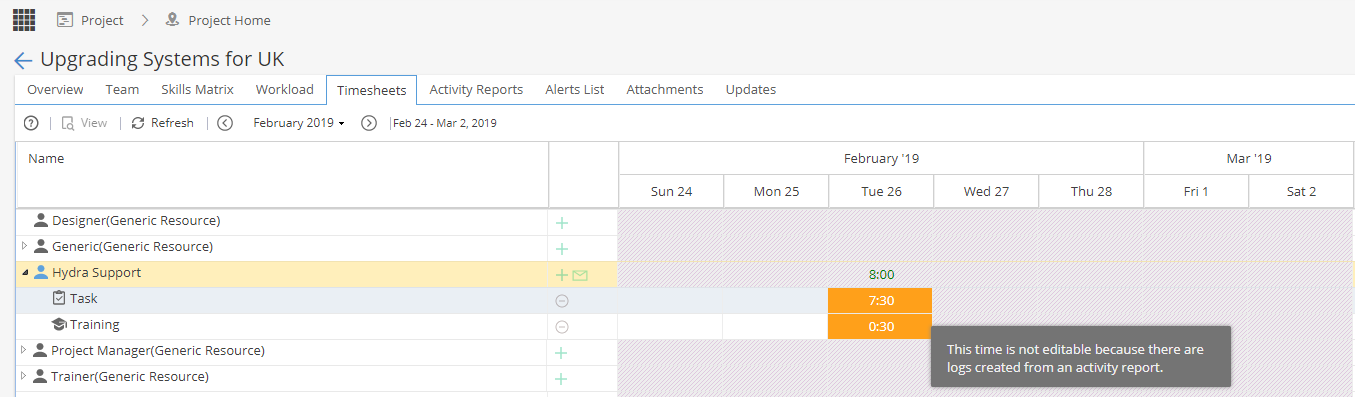
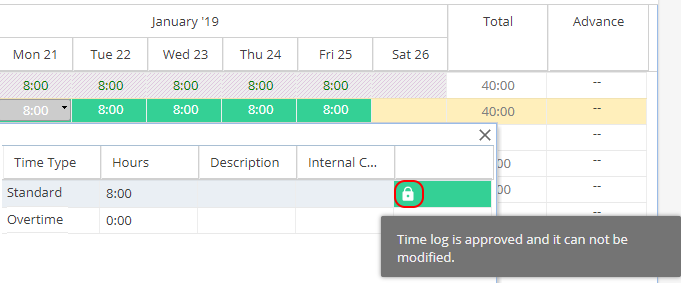
If the Timesheet shows as locked after being approved but time needs to be edited, ask the Project Manager to go to My Space > My Approvals > Time Log Approvals.
Once the time entry has been unapproved you will be able to make amendments.