The Checkpoints tab will give you a view of Checkpoints for all Live / Closed Projects.
If a Project does not have any Checkpoints, it will still be included in this view but will only be shown with a blue line to see the start / end based on the Schedule(s).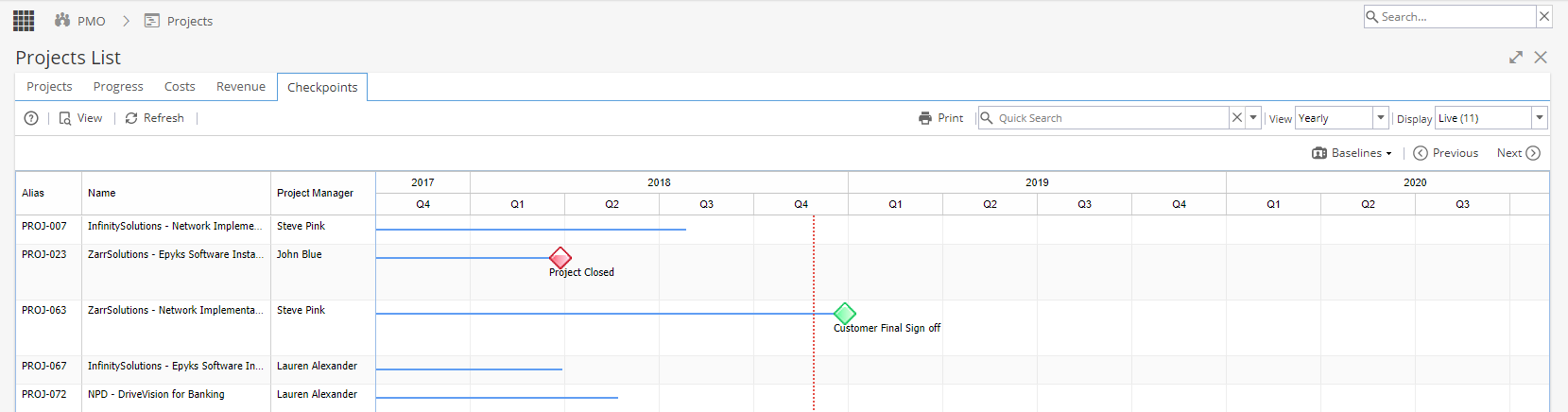
On the left hand side will be the Alias, Name and Project Manager.
Clicking on a Project and clicking View or double clicking on a Project Name will take you to PMO > Project > Details tab
The red dotted line shows you today's date for reference.
The colour of the Diamond is based on health: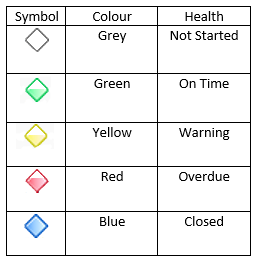
The Diamond will fill up by colour based on the Progress %
Grey diamonds will always be 0% as they have not been started yet.
Blue diamonds will always be 100% as they are closed.
Hovering your mouse over the diamond will give you some additional information: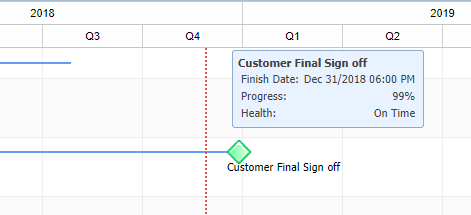
The print icon  on the top right open up the current view in a new tab without the menu information to make it easier to print (or save a copy as PDF).
Note: Depending on your Printer settings you may need to make some adjustments to fit this on one page or include the background graphics for the Diamonds to show.
Quick Search allows you to search by Alias / Project Name
Clicking the down arrow will give you the option to filter by Project Tags or Organizational Units.
View allows you to change the date range to Yearly, Monthly or Weekly
Display allows you to filter by Live, Closed or All Projects.
Draft Projects can not be included in this view.
Baselines allows you to select a Baseline (if applicable, this option may be greyed out)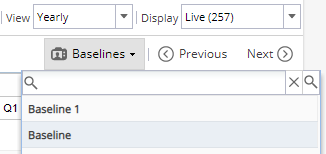
The Previous / Next buttons adjust the date range
Monthly - 3 months
Yearly - 1 year (4 quarters)
Weekly - +5 weeks from the last week visible
The Checkpoint Names come from the Blueprint > Assets > Checkpoints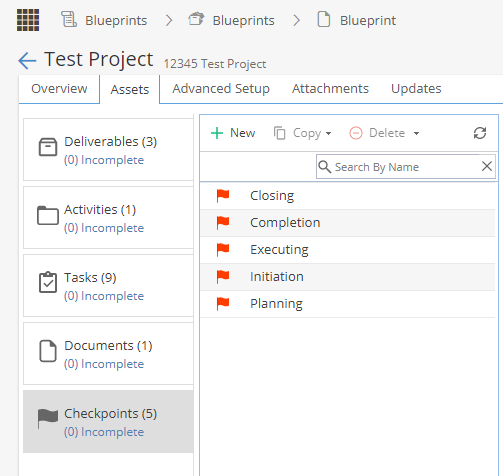
Checkpoints can also be seen in the Report Widgets on the Company or Project Dashboards