When a schedule is selected you can view the Progress tab, this will show the progress of the schedule overall but you can also go down to Task level.
The following information is available in this view:
- Name - Name of the Activity or Task
- Predecessors - If the Task is dependent on any of the others in the Schedule
- Responsible - The resource that has been assigned to this task
- Planned Progress - The expected progress of the task as a percentage at a particular point in time.
- Actual Progress - The actual progress of the task as a percentage at a particular point in time. The bar shows as blue when the schedule has not yet been published, or the task has been completed. A green bar shows that the task is on track. A yellow bar warns that the task is falling behind. A red bar shows that a task has significant delays.
- Planned Start Date - The expected start date of the task
- Planned End Date - The expected end date of the task
- Actual Start Date - The date the task started
- Actual End Date - The date the task completed
- Total Hours Req (h) - The expected total effort in hours required to complete the task.
- Planned Effort (h) - The amount of effort in hours that are expected to have been logged against the task at a particular point in time.
- Earned Effort (h) - Time logged against the task up to the tasks planned effort. For instance, a task has a planned effort of 1 hour. 2 hours are logged against the task. The earned effort will be 1
- Actual Effort (h) - The amount of effort in hours that have been logged against the task at a particular point in time.
- Planned vs Actual (h) - The difference in hours between the time planned for, and the time logged against the task.
- Required vs Actual (h) - The difference in hours between the time required to complete, and the time logged against the task.
Use the arrows to the left of the Name column to expand / collapse to adjust the breakdown: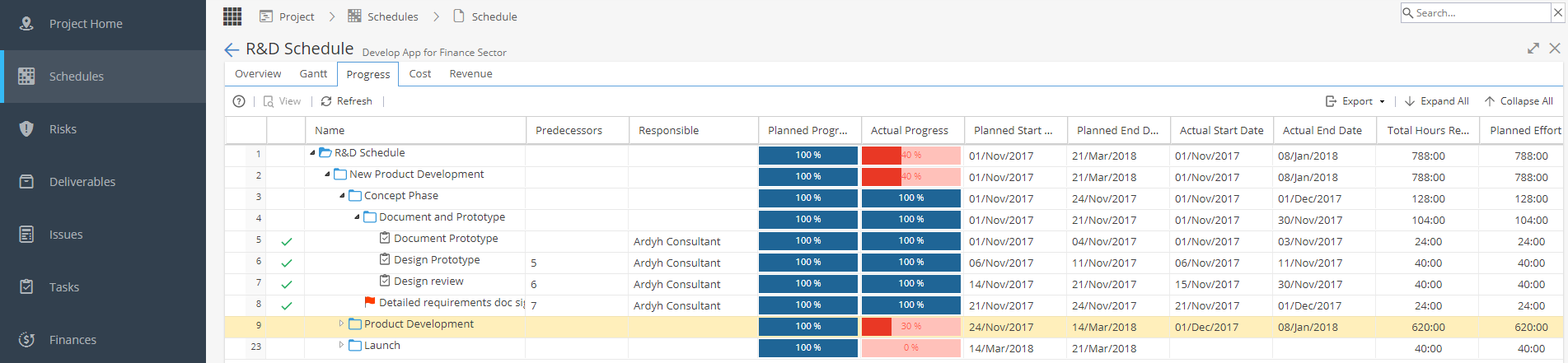
Hover your mouse over the column headings to see a drop down arrow appear, this will allow you to:
- Sort on a column, click the drop-down arrow on the right of a column heading and click 'Sort Ascending' or 'Sort Descending'.
- Hide/display a column, click the drop-down arrow on the right of a column heading, scroll to 'Columns' and tick/untick a column as desired.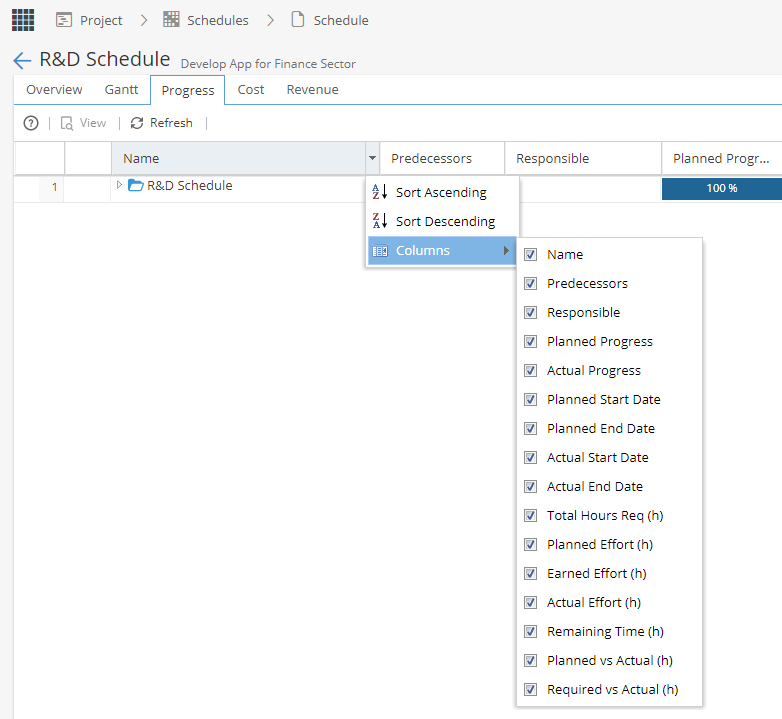
Clicking on a Task (the row will highlight yellow) will make the View button available, which will take you to the Project > Tasks > Task Details > Overview screen

Export allows you to export the information available in this screen to various file formats, to do so click Export and select which file format from the drop-down menu that appears. The file will then download to your local computer automatically.

Expand All and Collapse All allow you to expand all nodes on the displayed tree, and collapse the view respectively.
