When logged in to Hydra, click on your Avatar on the top right and click Support.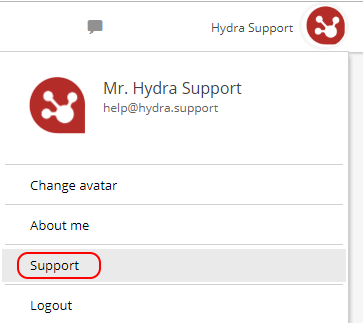
When visiting our Help Guides via https://www.hydra.support you will see your name / picture on the top right.
This will also give you the option to "Submit a request" (raise a ticket).
Click on your name and select My Activities from the drop down menu.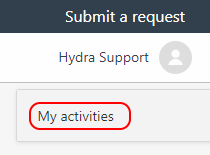
 You may be asked to verify your email address before being able to see your Requests.
This will show you requests raised: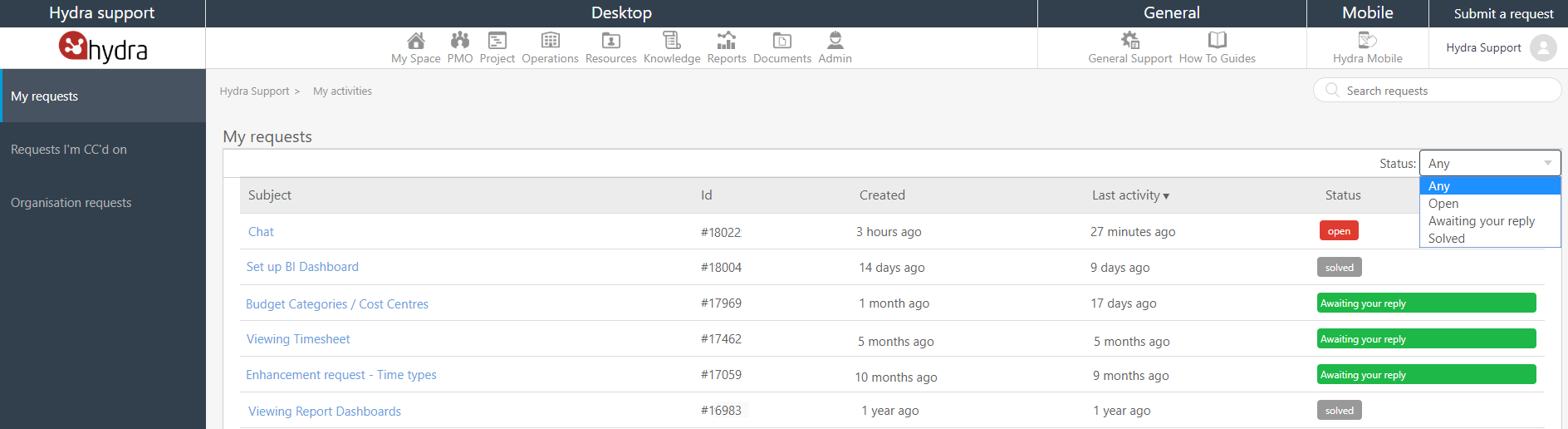
On the left hand side you can select My requests or Requests I'm CC'd on.
You may also have the option to view all requests for your Organisation.
Clicking on the Subject for a query will allow you to view the full history (email / chat / comments).
If the ticket is Open / Awaiting your reply you will also have the option to add a comment or Mark the ticket as Solved if no further help is needed.
If the ticket shows as Solved you will only have the option to create a follow-up query on a new ticket:
On the right hand side you can filter the view by Status:
Open |
Action required by Hydra (including work required by Development team) |
Awaiting your reply |
More information required OR resolution has been provided but ticket has been left open in case of further comments / questions. |
Solved |
Query has been answered and Ticket is closed |