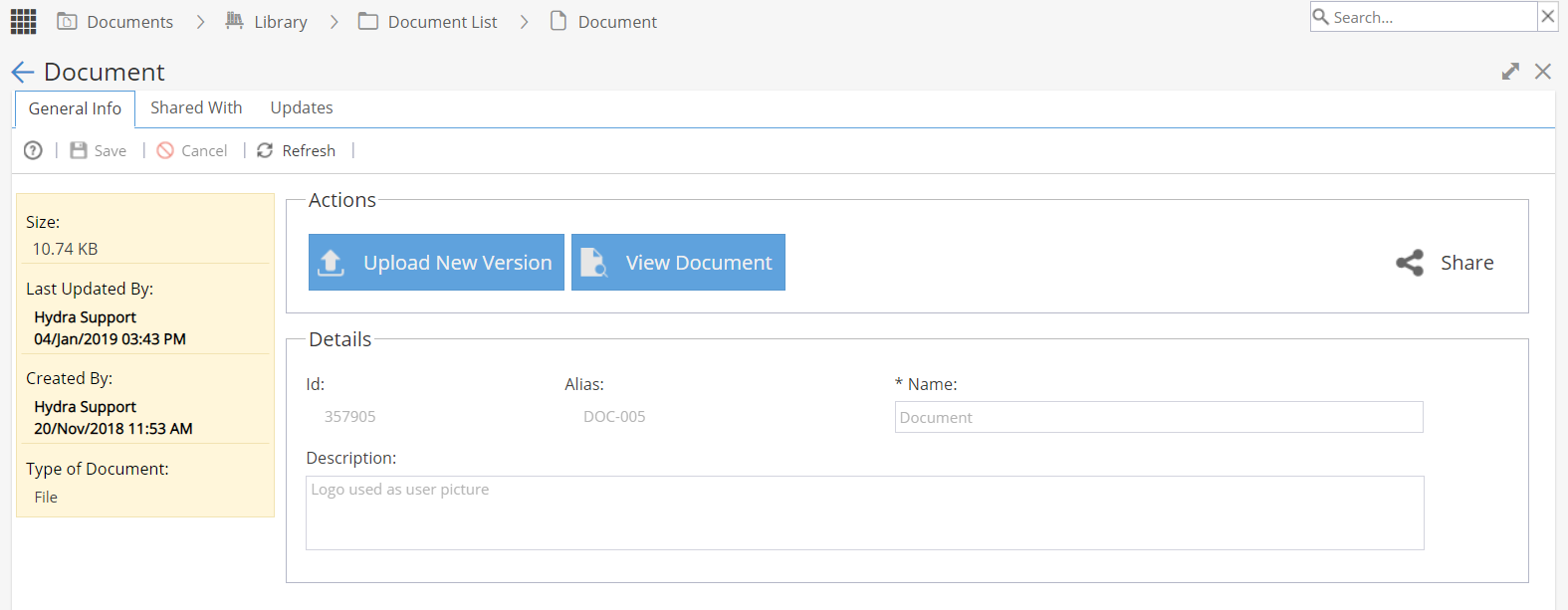
The General Info tab shows you:
Information in Yellow / Blue Panel
Details - Name & Description
Actions - View Document
Actions - View Templates
Actions - Share
Information - Yellow / Blue Panel
This panel shows you:
Size
Last Updated By
Created By
Type of Document
If the panel is Blue it means the document is from a Blueprint.
If the panel is Yellow it means the document is from a Project.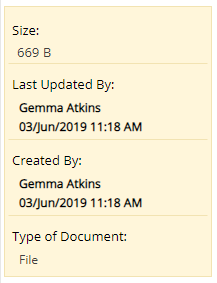
Details - Name & Description
Double click to edit the Name & Description
The ID number is created automatically by the system
The Alias would usually be created by the system
(but this depends on the settings under Admin > Configuration > Company Preferences > Automatic Alias)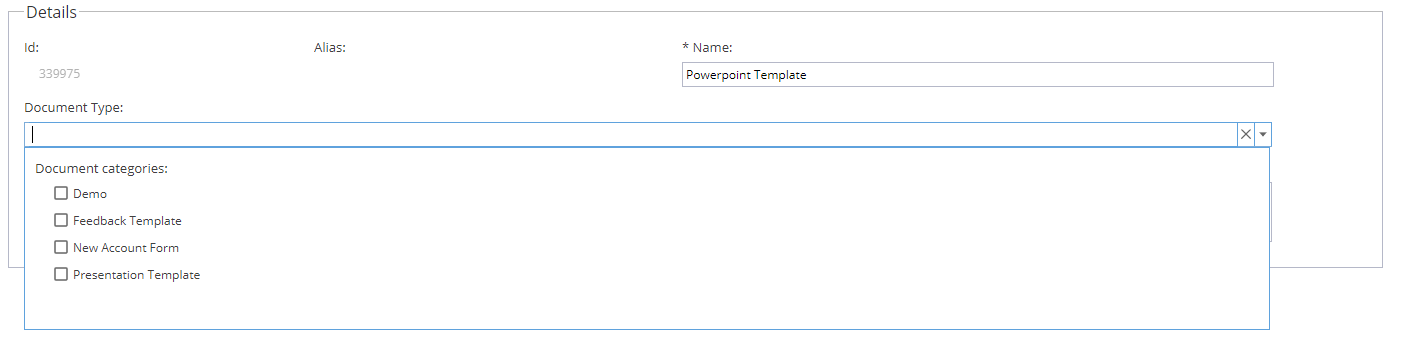
If you see Tags available to select from a dropdown, this will relate to the configuration of the blueprint, tags are used to identify if the input / output of a task has been met with the correct type of document.
Document Type can be:
| File | Document uploaded into Hydra |
| Online | Enter / copy & paste HTML to show as a document |
| URL | Link outside of Hydra e.g. Sharepoint |
Actions - Upload New Version
Click the Upload New Version Button:
Select a file to upload: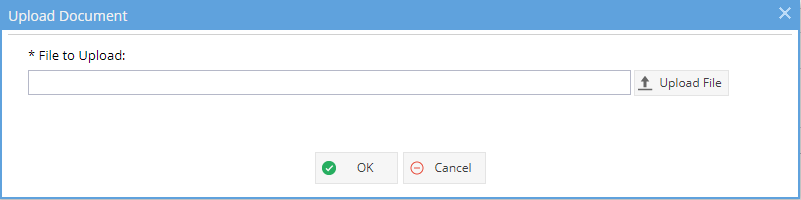
Add a comment to explain why this version is replacing the existing document: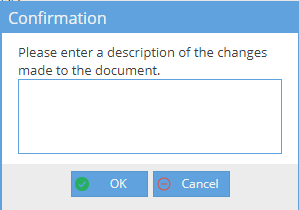
Once you click OK, you will see the updated date change on the Content tab and the information in the yellow / blue panel will update.
Actions - View Document
Clicking on the View Document button allows you to download a copy of the current document to view.
Actions - View Templates
Clicking on the View Templates button allows you to download a copy of any available templates to view.
Actions - Share
Clicking on the Share icon will take you to the Shared With tab