The Progress tab in the Schedules List provides details regarding the progress of each of the Schedules within your Project
The following information is available in this view:
- Name - Name of the Schedule
- Predecessors - If the schedule is dependent on any of the others in the Project
- Planned Progress - The expected progress of the schedule as a percentage at a particular point in time.
- Actual Progress - The actual progress of the schedule as a percentage at a particular point in time. The bar shows as blue when the schedule has not yet been published, or all tasks (and therefore the schedule) have been completed.
A green bar shows that the schedule is on track.
A yellow bar warns that the schedule is falling behind.
A red bar shows that a schedule has significant delays.
Read more about the colours showing Schedule Health. - Total Hours Req (h) - The expected total effort in hours required to complete the schedule.
- Planned Effort (h) - The amount of effort in hours that are expected to have been logged against the schedule at a particular point in time.
- Earned Effort (h) - A cumulative of all time against tasks up to the tasks planned effort.
For instance, if a task has a planned effort of 1 hour and 2 hours are logged against the task.
Only 1 hour will be added to the Earned Effort for this task. - Actual Effort (h) - The amount of effort in hours that have been logged against the schedule at a particular point in time.
- Planned vs Actual (h) - The difference in hours between the time planned for, and the time logged against the schedule.
- Required vs Actual (h) - The difference in hours between the time required to complete, and the time logged against the schedule.
You can change the columns displayed by selecting the down arrow (this will appear when hovering your mouse over a column) From the Columns menu tick / untick the options you would like to include or exclude in your view:
Clicking on a Schedule (the selected row will highlight yellow) and clicking View or double clicking on a Schedule will take you the Gantt view.

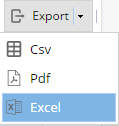
Export allows you to export the information available in this screen to various file formats, to do so click Export and select which file format from the drop-down menu that appears. The file will then download to your local computer automatically.
Quick Search allows you to search for specific Schedules(s).The down arrow button next to the search allows you to Filter the list of Schedules using the Project Tags you have set up.

Finally the Display menu allows you to filter the list based on the Schedule Status (Published, Unpublished, Closed, or All)
