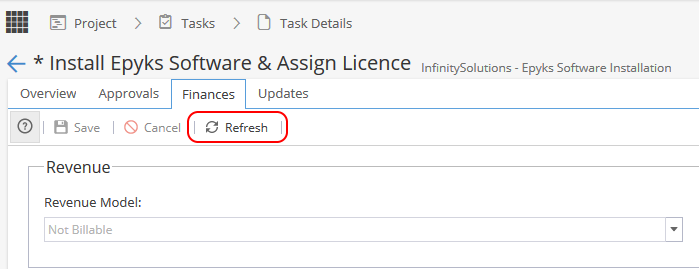
To view financial information at a Task level, navigate to Project then click on Tasks, open a Task and click on Finances.
Information related to Revenue (if applicable), Costs (if applicable), Budget Category (if set) and detailed Task Finances are displayed:
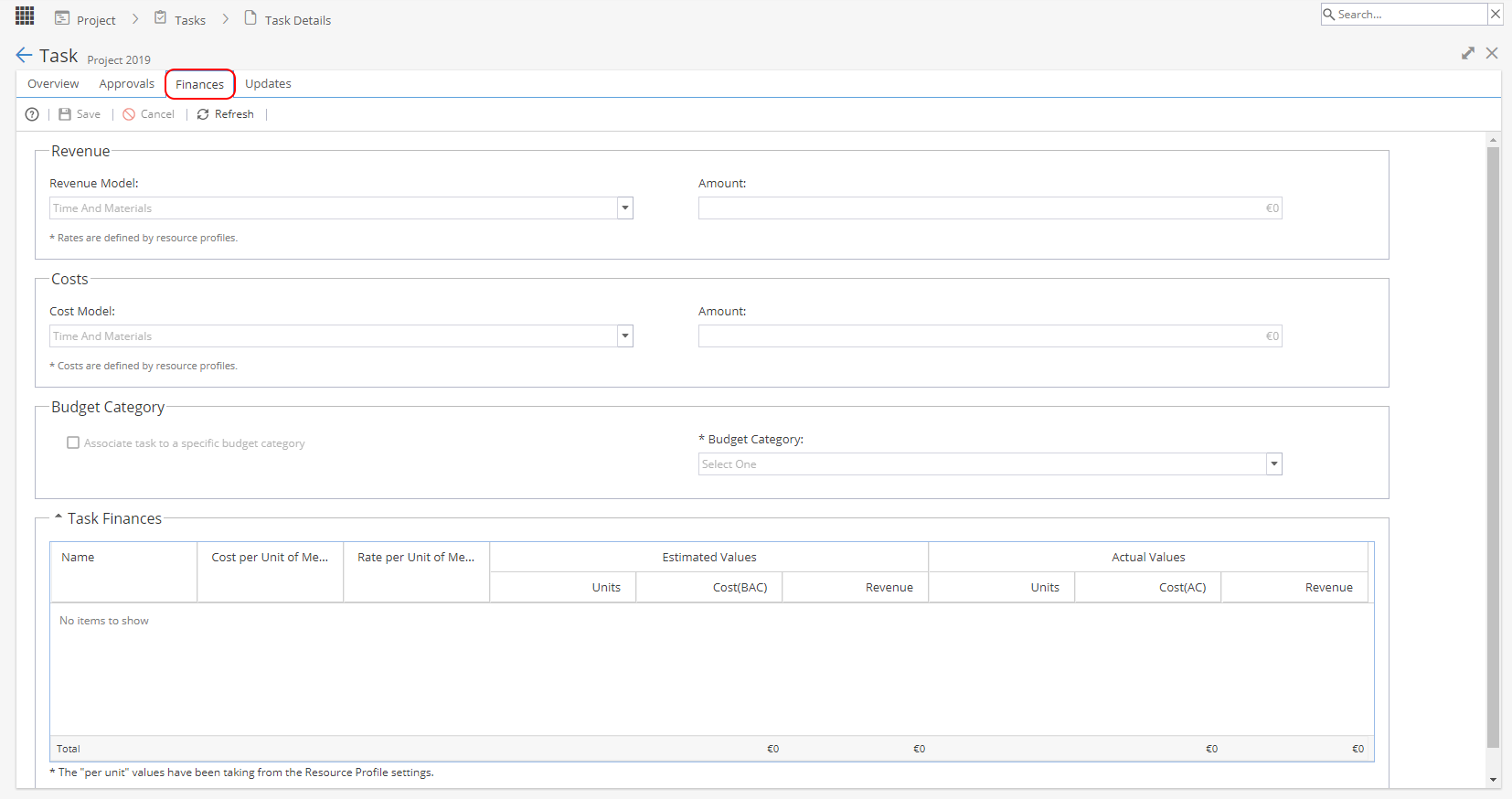
To make changes to the Revenue Model or Cost Model, double-click on the drop-down arrow to the right and click your selection:
- Same as Estimated Revenue / Cost - this is the Rate / Cost for each Resource assigned to the Task multiplied by how long each Resource is scheduled to work on the Task (as in screenshot above for Costs)
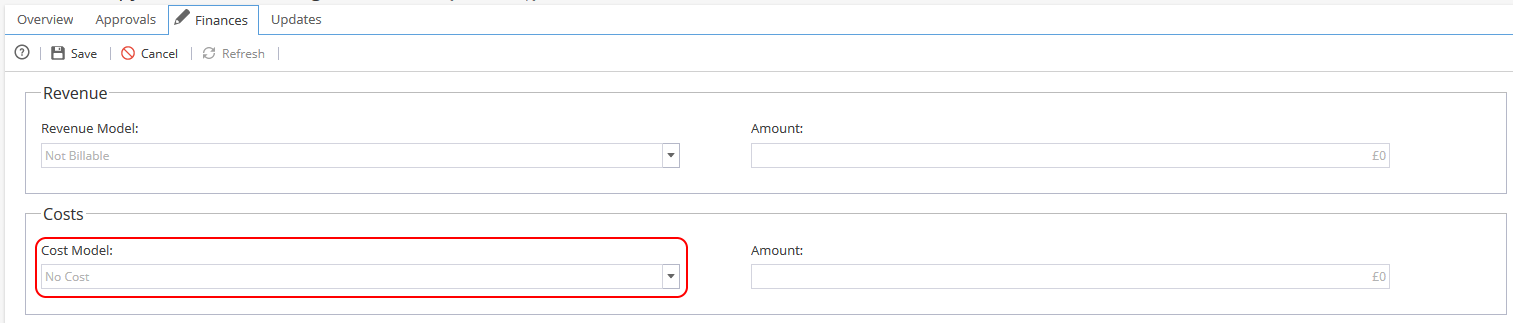
- Not Billable / No Cost - this will insert '0' in the Amount box on the right:
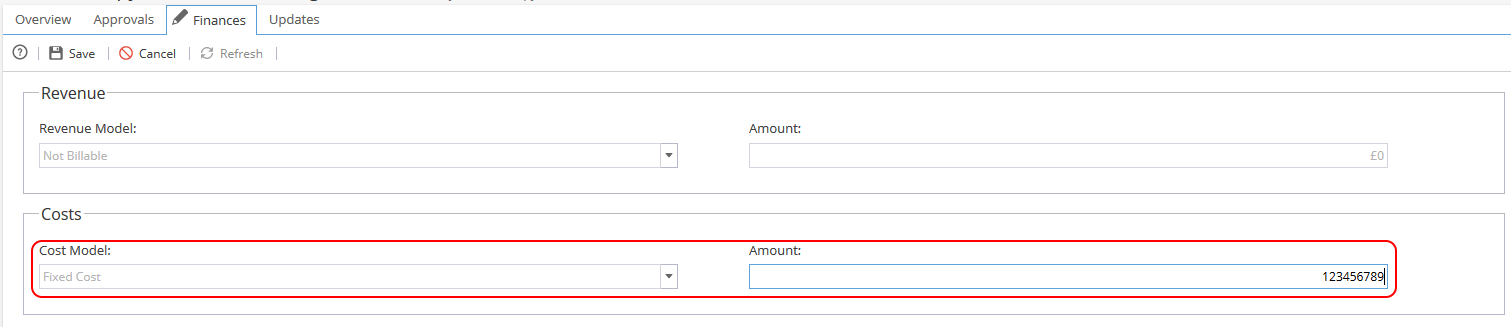
- Fixed Cost - this will allow you to insert a value in the Amount box on the right:
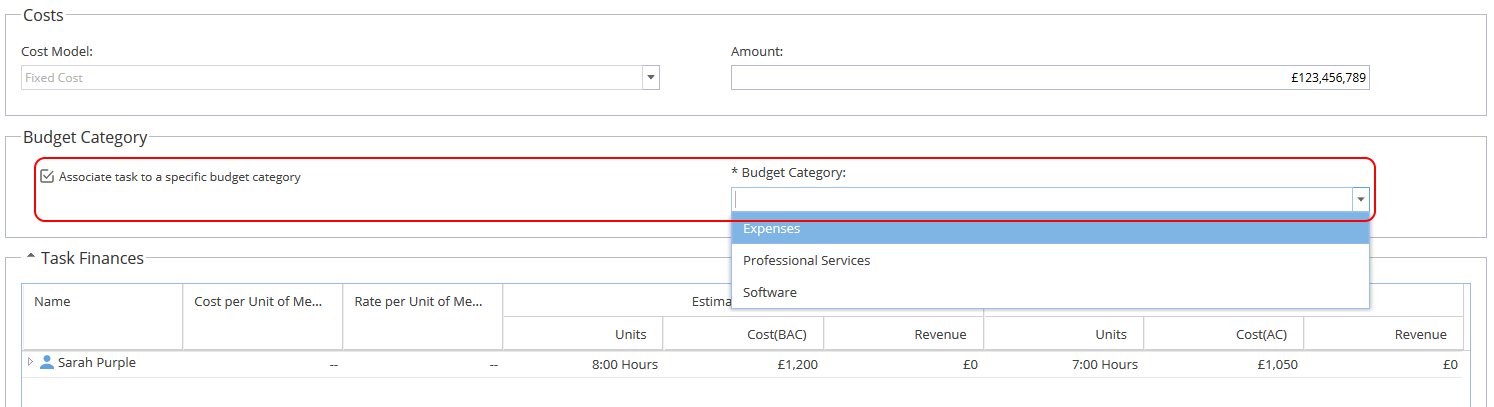
You can set a specific Budget Category by ticking the tick box as below, then choosing a Budget Category on the right hand side. The Category list will be populated from the Project categories:
The Budget Category can not be set if the Schedule Overview screen has been set for all Tasks in the Schedule. A yellow information bar will be displayed if this is the case:
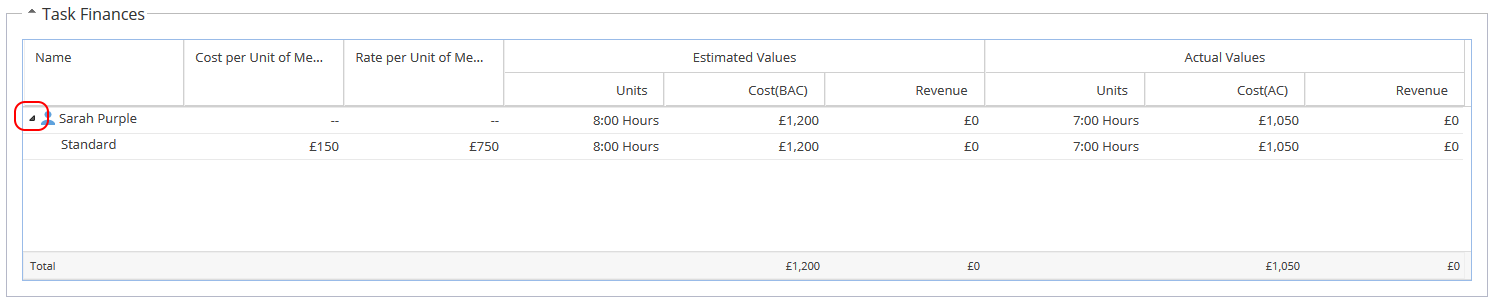
You can also expand the Task Finances to see the breakdown in greater detail by clicking the drop-down arrow as below. For example, you can see the subdivision of Costs and Revenue between Standard working time and Overtime (if configured):
At the bottom of the Revenue, Costs and Task Finances box you will see an asterix with a message to confirm where the rates are being taken from.
This is based on a setting from the Schedule Detail Overview tab.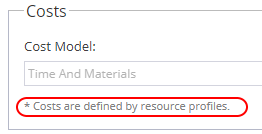
Finally, you can refresh the contents of the page to see updated information in real time by clicking the Refresh button: